Re-adding every field
You drag in each field one at a time and set its type, even though Salesforce already knows all of this from the object.
Page Layout to Form · One-click form builder
Don't rebuild your fields. TwinaForms reads a Salesforce object's page layout and generates a complete public form — every field placed, prefill and submit wired automatically. A Salesforce form that used to take an hour is ready in minutes.

The problem
Your object already has the fields, the layout, and the structure. But every form tool makes you build it all again from scratch — by hand, field by field.
You drag in each field one at a time and set its type, even though Salesforce already knows all of this from the object.
To load an existing record, you map every field to a query, one by one — tedious and easy to get wrong.
Then you map every field again for the write-back so the form actually saves to Salesforce. Double the work.
A simple form becomes an afternoon. Multiply that across objects and languages and form-building eats your week.
The solution
Page Layout to Form is a native TwinaForms feature. Pick a Salesforce object and TwinaForms builds the entire form from its page layout — fields, sections, prefill, and submit — in a single click. You preview, polish, and publish.
An input for each field on the layout, with the matching type — text, number, picklist, date, lookup — in the layout's own order.
A prefill action that loads an existing record is created and wired to every field, so the form can pre-populate with no manual mapping.
A submit action writes the values back to the same Salesforce object, every field mapped for you. The form works end-to-end immediately.
Pick a language and TwinaForms pulls translated labels from your Translation Workbench; Hebrew switches the form to right-to-left automatically.
What you get
No blank canvas. The generated form mirrors how your team already works with the record in Salesforce — ready to preview and publish.
How it works
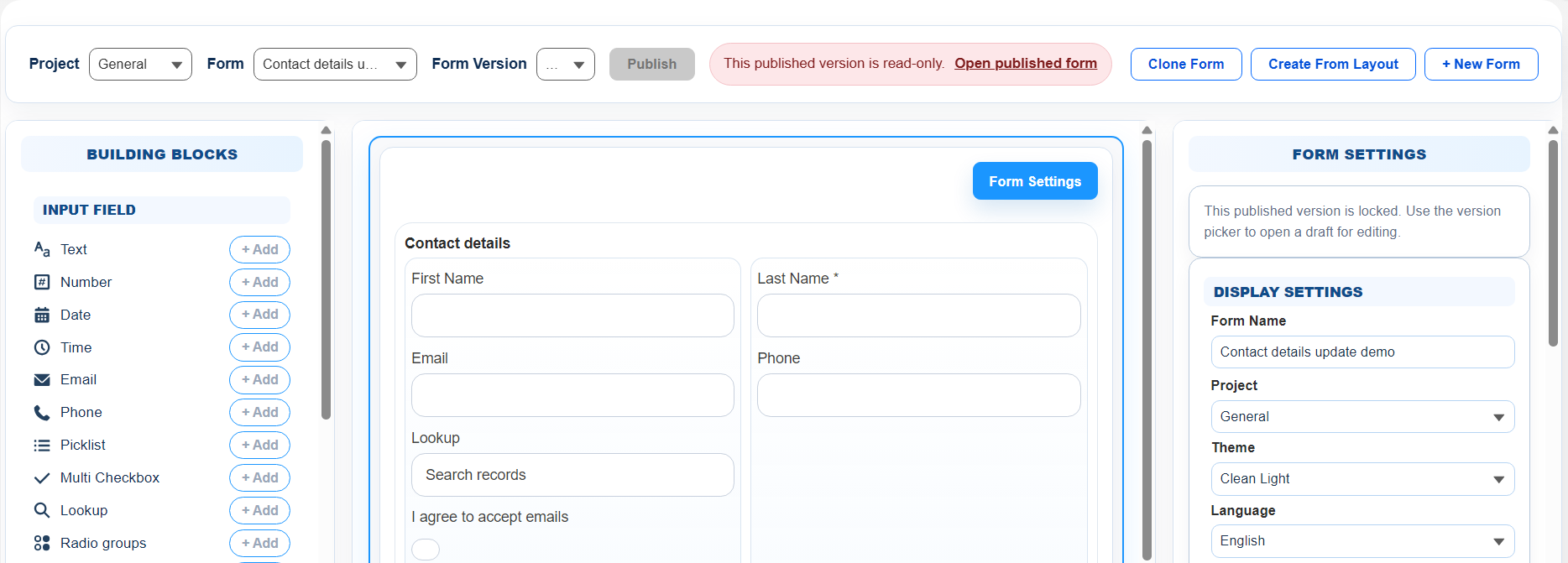
In TwinaForms, open the Designer page where you build and publish your Salesforce forms.
In the top toolbar, click Create From Layout — the one-click Page Layout to Form shortcut.
Choose any standard or custom object. TwinaForms reads its page layout and generates the draft form instantly.
Tidy labels, hide internal fields, confirm submit mode, and publish a public form that writes straight to Salesforce.
By hand vs. one click
Whether you build by hand in another tool or wire up a connector, you do the same work twice. TwinaForms reads the layout for you.
| TwinaForms (Page Layout to Form) | Building a form by hand / external tool | |
|---|---|---|
| Adding fields | Generated from the page layout in one click | Dragged in and typed one by one |
| Prefill mapping | Created and wired to every field automatically | Mapped manually, field by field |
| Submit mapping | Created and wired to every field automatically | Mapped again for write-back |
| Time to a working form | Minutes | Often an hour or more per form |
| Where it runs | Native in Salesforce, from the Designer | Outside Salesforce, via a connector |
| Multiple languages | Re-run per language, labels pulled from Salesforce | Rebuilt and re-translated by hand |
Where teams use it
Generate a self-update form straight from the Contact layout, then prefill and lock the fields you choose.
Lay your custom object out once and generate the form. See the timesheet form →
Model questions as fields, generate the form, add a scoring formula. See the quiz form →
FAQ
With TwinaForms you don't rebuild anything. Open the Designer, click Create From Layout, and pick a Salesforce object. TwinaForms reads that object's page layout and generates a working form with every supported field already placed, in the layout's order, plus the prefill and submit actions wired to each field automatically. What would be an hour of dragging and mapping fields becomes one click.
Yes. That is exactly what the Page Layout to Form feature does. You choose a standard or custom Salesforce object and TwinaForms builds a draft form from its page layout — input elements for each field with the matching type (text, number, picklist, date, lookup, etc.), the layout's sections preserved, and prefill and submit actions created and mapped for you.
Minutes. The form is functional immediately after the one-click generation — you preview it, polish labels, and publish. Most of the time-consuming work, adding each field and wiring prefill and submit, is done for you, so a form that would take an hour by hand is ready in a few minutes.
Yes. Page Layout to Form creates a prefill action that can load an existing record into the form and a submit action that writes the form's values back to the same Salesforce object — both with every field already mapped. The form works end-to-end the moment it is generated.
Salesforce system fields (Owner, Created By, Created Date, Last Modified By/Date, System Modstamp) and formula fields are intentionally left off, because they are managed by Salesforce and not meant for visitor input. Fields with no TwinaForms equivalent (Rich Text Area, compound Address, Geolocation, Encrypted Text) are also omitted; you can add plain Text fields afterwards if needed.
Yes. Page Layout to Form is multilingual. When you choose a non-English form language, TwinaForms pulls translated object, section, and field labels from your Salesforce Translation Workbench, and Hebrew is set to right-to-left automatically. Run it once per language to produce the same form in each language you maintain.
External tools like FormAssembly require you to build the form and map every field to Salesforce through a connector, outside your org. TwinaForms is native: it reads your Salesforce page layout directly and generates the whole form — fields, prefill, and submit — in one click, managed entirely from the Salesforce Designer, with no connector to maintain and no per-user license for the people filling the form. For step-by-step setup, see the Page Layout to Form documentation.
Stop rebuilding fields
Page Layout to Form is included on the Pro plan. Install TwinaForms into a sandbox, open the Designer, and turn a page layout into a working public form before your coffee's cold. Nonprofit discount available.