Anyone can open it
A public form URL can be forwarded, guessed, or scraped. Without verification, a stranger can open a form meant for one specific contact.
User Verification for Salesforce forms
TwinaForms adds user verification to your public Salesforce forms: a one-time code sent to the visitor's email and matched to their Salesforce Contact record. Only known contacts get in — no portal, no Salesforce login, no per-user license. The form stays public; the data stays protected.
The problem
The moment you publish a public form that prefills or updates Salesforce data, you have a problem: how do you know the person filling it is who they say they are?
A public form URL can be forwarded, guessed, or scraped. Without verification, a stranger can open a form meant for one specific contact.
If the form prefills a contact's details from Salesforce, an unverified link leaks that data to whoever opens it.
An update-the-record form with no identity check lets the wrong person change the right record — silently, in your CRM.
Anonymous public forms attract spam and duplicate entries that pollute Salesforce and waste admin time cleaning up.
The solution
User Verification is a native TwinaForms feature. Turn it on for any form and the visitor must verify with a one-time email code, matched to a Salesforce Contact, before they ever see the fields.
The visitor's email must match an existing Salesforce Contact. Unknown emails never pass and never see the form, even though the URL is public.
A fresh code is emailed for each verification. No accounts to create, no passwords to reset, nothing for the visitor to remember.
Once verified, the form can prefill that Contact's data and lock the fields you choose — so the visitor confirms or updates only what you allow.
The lookup and the code are handled on the Salesforce side, so verification lives where your users, permissions, and records already live.
How it works
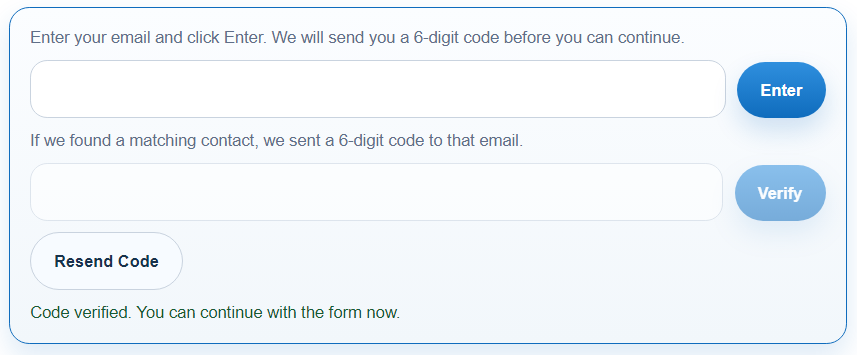
The published form opens to a verification step instead of the fields. The visitor types the email you'd expect to find on their Contact.
The email is checked against Salesforce Contacts. No match means no code, and the form stays closed.
A single-use code is sent to that address. The visitor enters it to prove they control the inbox tied to the Contact.
Only now do the fields appear — prefilled from the Contact, with a verified session for the duration you configure.
Native vs. add-on
Tools like FormAssembly offer form authentication, but they live outside Salesforce. TwinaForms verifies against the Salesforce Contact itself — here's the practical difference.
| TwinaForms (native) | Typical external form tool | |
|---|---|---|
| Where verification runs | Inside Salesforce, against the Contact record | In the vendor's platform, outside Salesforce |
| Who can pass | Only emails matched to a Salesforce Contact | Vendor accounts or a Salesforce login |
| Login required to fill | No — one-time email code only | Often a login or vendor account |
| Per-user Salesforce license | None for the people filling the form | Sometimes required for SSO/login flows |
| Prefill & writeback | Native to the matched Contact and any object | Via connectors / mapping steps |
| Managed from | The Salesforce Designer | A separate vendor console |
Where teams use it
Let a contact confirm and update their own record — verified first, prefilled, with the fields you choose locked.
Verify the contractor or employee before they log hours, so every signed timesheet is tied to a confirmed identity. See the timesheet form →
Membership renewals, case intake, and any form that exposes or changes personal data behind a verified gate.
FAQ
User verification is a gate that sits in front of a public Salesforce form. Before the form opens, the visitor must prove who they are with a one-time code sent to their email. TwinaForms matches that email against a Salesforce Contact record, so only known contacts can open the form — even though the form URL is public. It turns an anonymous public form into a verified, identity-aware Salesforce form.
When a visitor opens the form link, they first see a verification step asking for their email. TwinaForms looks the email up against Salesforce Contacts. If a Contact is found, a one-time code is emailed to that address. The visitor enters the code and only then does the form render. If the email is not on any Contact, or the code is wrong, the form never opens.
Yes. Verification is matched to an existing Salesforce Contact by email, and runs on the Salesforce side inside your org's own trust boundary. That is what lets TwinaForms safely prefill the form with that Contact's data and write the submission back to the correct record — no risk of one person editing another person's data.
FormAssembly and similar tools offer form authentication, but they sit outside Salesforce and typically authenticate against their own user system or a Salesforce login. TwinaForms is a native Salesforce app: verification is matched directly to the Salesforce Contact record by email, the code is sent and checked on the Salesforce side, and there is no separate portal, no Salesforce login, and no per-user license for the people filling the form. You manage everything from Salesforce.
No. The form is public and the people filling it never log in to Salesforce and never consume a Salesforce license. They verify with a one-time email code only. This is the main difference from Salesforce Experience Cloud portals or Screen Flows, which require a licensed login for each user.
Yes. Because the verified visitor is matched to a Salesforce Contact, TwinaForms can prefill the form with that Contact's data and set fields to Locked (read-only) so the visitor can confirm or update only the fields you allow. This is ideal for contact-update, donor self-update, and renewal forms.
Two modes are supported per form. A short session keeps the visitor verified for the duration of the code's expiry window. A same-tab session stores the verified token in the browser tab so a refresh does not require re-verifying; it clears when the tab closes, expires at the visitor's local midnight, and is capped at 12 hours. A fresh browser tab always starts a fresh verification. See the User Verification documentation for setup details.
Ready to lock it down
User Verification is included from the Starter plan. Install TwinaForms into a sandbox, switch it on for a form, and watch an unknown email get turned away. Nonprofit discount available.